Firewood order management, with every order in one list.
Orders come in by shop, phone, text, Facebook and voicemail. Here is how LogRun puts them in one pool, and how the office keys in the ones that don't arrive by themselves.
Five ways in, one list out.
Firewood order management is mostly about where orders land. A shop order, a call, a text from a regular, a social media message and a voicemail all have to end up in one list before the office can start on the week's runs.
In LogRun that place is the pool. Shop orders arrive in it by themselves. Everything else is keyed in by your office on the phone order screen, so a person always types the ones that came as a text or a message. We don't read your inbox for you.
- Shop orders land in the pool by themselves
- Phone calls are keyed in on the phone order screen
- Texts and Facebook messages are keyed in the same way
- Voicemails are keyed in once you've rung back
From there on, every order is handled the same way, whichever door it came through.
The pool, grouped by area.
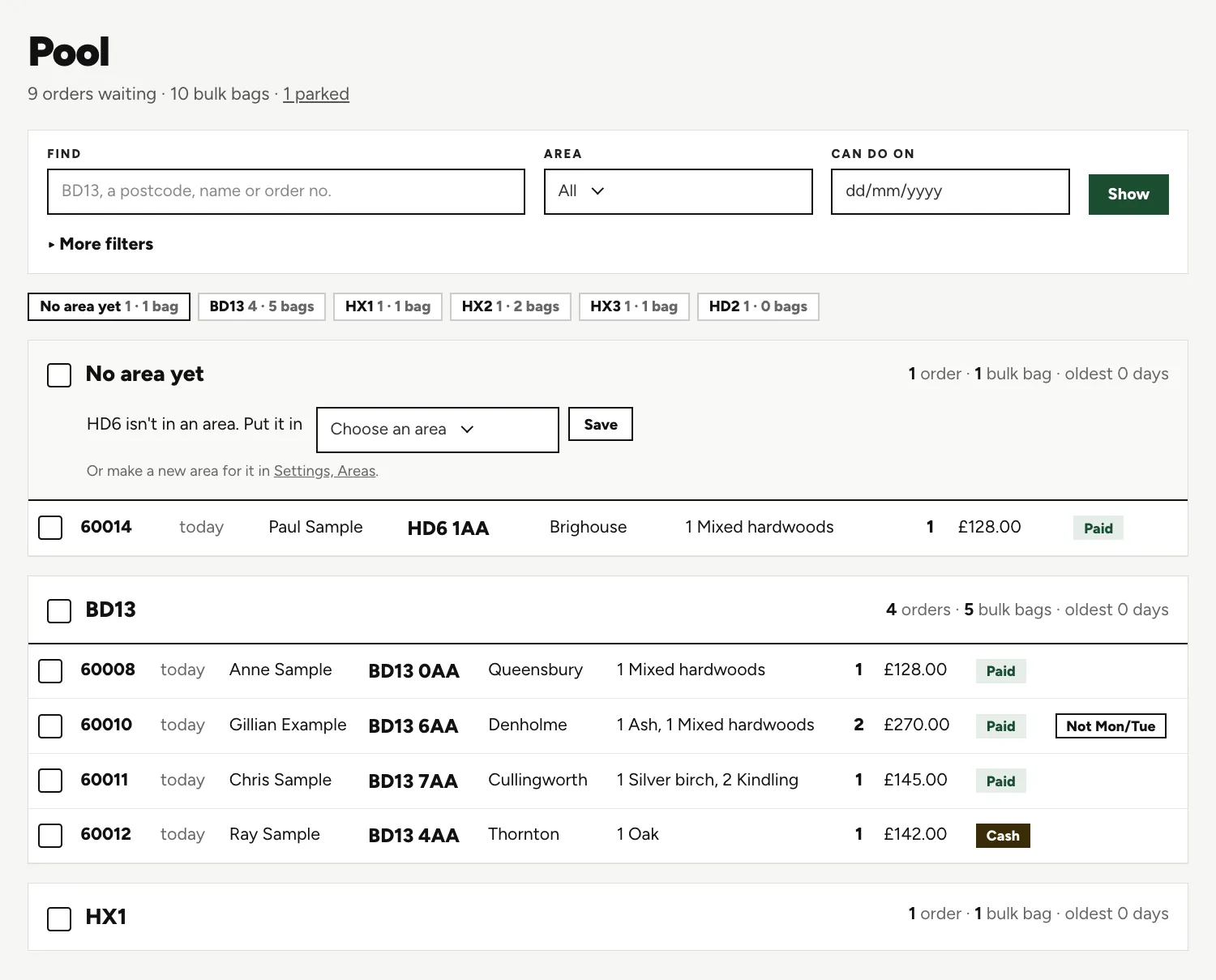
Find an order by number, name, postcode, phone, email or run, or narrow the list by area or by a date the customer can take a delivery.
Area buttons
Each button shows the orders and bags waiting in that postcode area, so you can see which round is filling up.
The order row
Tick box, order number, name, postcode, town, items, bag count, price and a Paid badge, all on one line.
A flag on a row
One order carries Not Mon/Tue. You see the days to avoid before you pick a day.
No area yet
A postcode that no area claims waits in its own group, which asks which area it belongs in.
Flags tell you what to watch.
A flag is a small label on the row. It means the order has something the person building the run should know.
Days they can't do
Weekdays this customer can't take, so nobody books them for a Tuesday by mistake.
Earliest date
Not before the day they get back from holiday.
Ring to arrange
The customer wants a call before the day is fixed.
Collect used bags
There are empty bags at the house to bring back on this visit.
Customer warnings
A caution about the property or the customer, which also shows on their record.
Notes
Whatever the office wrote down at the time, still attached when the order is picked.
A phone order, step by step.
The same screen serves a call, a text or a voicemail. You work down the steps and finish by choosing how it'll be paid.
Find or add the customer
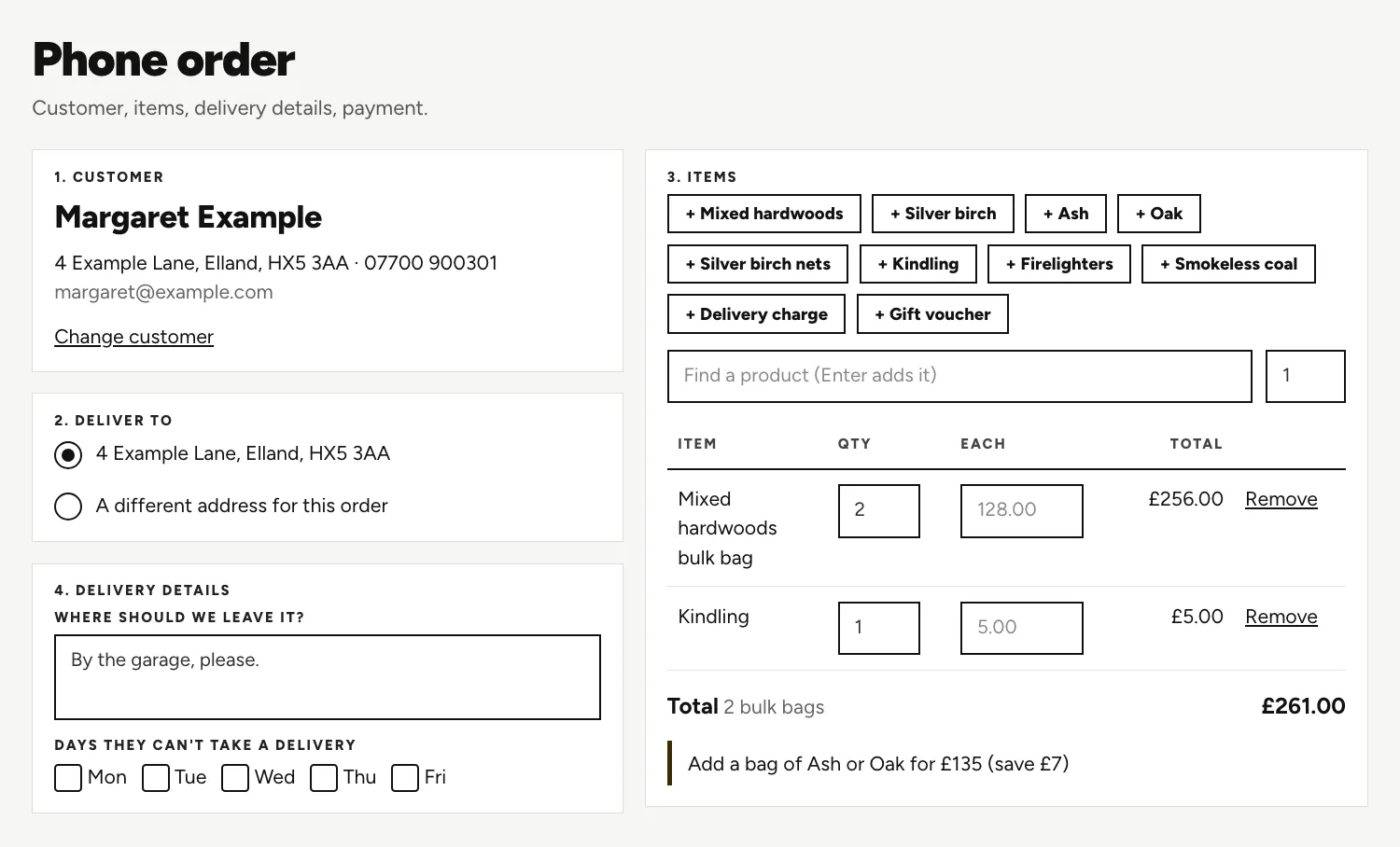
Step one is name, address, phone and email. Search first, so a regular is found and not added twice.
Where to deliver
Step two uses the saved address or a different one.
Quick-add buttons
One button per product, a find box for the rest, and a table that shows quantities, prices and the total. A prompt suggests another bag when an offer is close.
Delivery details
Step four records where to leave it and the days they can't take.
Five ways to record the payment.
The last choice on a phone order is how it'll be paid. Pick the one that matches what the customer said on the call.
- Card, taken on the phone
- A payment link sent to the customer
- Cash on delivery, shown as cash to collect on the run
- On account
- Bank transfer
Orders that wait, and orders that change.
Some orders aren't ready to go. A customer is away, or the stock isn't back from the kiln. Park the order and it steps out of the way, then returns to the pool by itself, so nobody has to remember it.
Orders change too. A customer rings at seven to make it three bags, not two. Change an order after it has gone onto a run and the run is flagged changed since printed, so nobody drives out with the old sheet.
Questions people ask.
Can customers text or message me an order and have it appear by itself?
No. LogRun doesn't read texts or Facebook messages. Your office keys the order in on the phone order screen, and from then on it sits in the pool like any other.
What happens to an order from a postcode I haven't set up?
It waits in a group called No area yet, which asks which area the postcode belongs in. Once you answer, it joins that area's list.
Do I retype a regular's address every time?
No. Find the customer by name, postcode, phone or email and pick their saved address, or add a new one. The order starts from what you already know.
What if the customer hasn't paid when I make the run?
The order still goes into the run, and the stop shows an unpaid warning. The office can chase it, and the paper sheet tells the driver.
Is a spreadsheet really so bad for taking orders?
Many yards start on a spreadsheet and it works for a while. The trouble comes when orders turn up by five routes and more than one person is typing. The pool is built for that second stage.
Keep reading.
Want to see it run on your yard?
Tell us how you take orders and run your deliveries today. We'll show you LogRun working on a yard like yours, and tell you honestly if it isn't the right fit.